
MC1474455 High
In-app browsing in Copilot app
Summary AI-generated
Microsoft Copilot app for Windows and Mac now supports in-app browsing of shared websites in chat via a side pane; admins can opt-in managed devices to test this feature.
Suggested actions AI-generated
- Enable 'BrowsingEnabled' policy on selected devices
- Review and configure in-app browsing policies
Written by Azure OpenAI (gpt-4.1) from the text of the post below. It can be incomplete or wrong; the original post is authoritative.
Similar posts
Search for more like this- MC1474461 Browser Use Admin Control for Copilot Cowork
- MC1457084 Microsoft Copilot app: Opt in selected devices to test the updated Copilot desktop app
- MC1223826 (Updated) Open Outlook emails directly in Copilot chat
- MC1250062 Power Apps - Public preview for Microsoft 365 Copilot chat in canvas apps
- MC1183295 (Updated) Introducing the Explore Pane in Microsoft 365 Copilot
- MC1250274 (Updated) Microsoft Edge: Copilot new tab page
Original post from Microsoft
[What and why:]
We are adding support to the Microsoft Copilot app, in Windows and Mac, to allow websites that Copilot shares in chat to open inside of the desktop app side by side with the Copilot chat conversation. This is available now but not available by default; administrators can opt-in selected Windows and Mac devices to test this.
[Rollout schedule:]
- Opt-in availability: Available now.
[Impact on your organization:]
Administrators can manage early access by opting-in selected devices and deploying the updates via instructions linked below. This early access allows you to:
- Test in-app browsing at your organization before the broader rollout. This allows users to open links within the Copilot desktop app.
- Validate deployed and in-app browsing behavior in your organization's managed environment.
- Prepare support teams and users for the updated experience that applies to Copilot Windows and Mac endpoints.
What users will see
When a user clicks a link within the Copilot desktop app, the website opens in a side pane to the right of the Copilot chat. Users can open multiple links, each appearing as a separate tab within the side pane and can switch between tabs as needed. Once the websites are no longer needed, users can close the side pane.
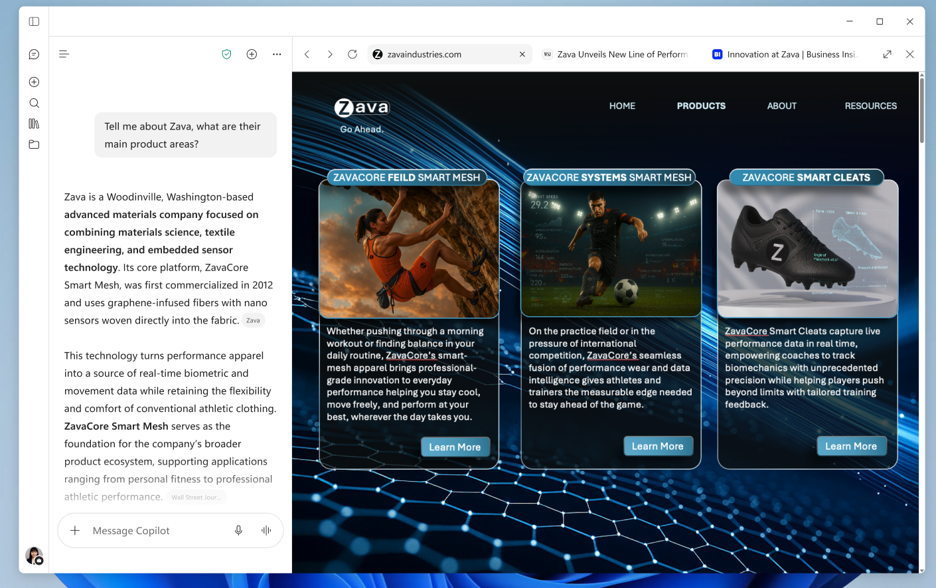
Users can adjust the in-app browser side pane to be smaller or larger. They can also enter full-screen mode to view the website in a full-screen experience and can toggle in and out of this mode using the button in the side pane header.
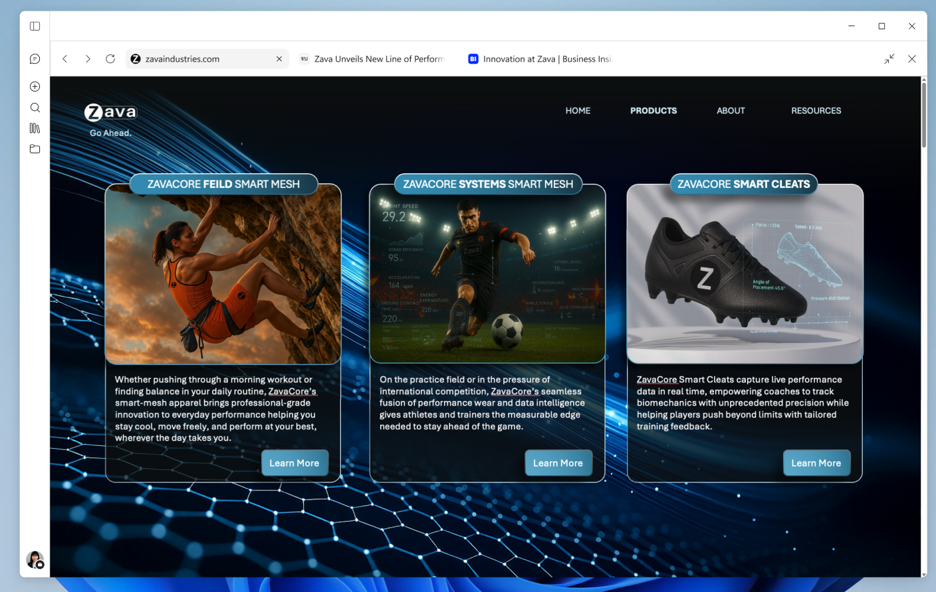
Users can still open a link in an external browser, by:
- Selecting the "External browser" option from the three-dot menu on the link within Copilot Chat
- OR Selecting “Copy the URL” and pasting it into an external browser
- OR Right clicking a tab in the side pane within the Copilot app and selecting "External browser" (coming 9/21)
[Action required / Recommendations:]
- To enable in-app browsing, you can turn on the 'BrowsingEnabled' policy through your device management system.
- Review the in-app browsing associated policies that can be adjusted and changed.
[Compliance Considerations:]
- Does the change store new customer data? Yes. Browsing history, cookies, autofill information are stored on the local device. This follows the same storage mechanisms as Microsoft Edge storing data in the user Data profile directory at “%localappdata%\Microsoft\Copilot\User Data”.
- Does the change provide end users with a new way of interacting with generative AI? This feature does not add any new way to create or steer generative AI, it only lets you view websites, whether those are website on the internet or html files created generatively with copilot via other features.
Additional details from Microsoft
- Summary
- The Microsoft Copilot app now supports in-app browsing on Windows and Mac, allowing users to open websites side-by-side with chat. Administrators can opt-in selected devices to test this feature, manage policies, and prepare support. Browsing data is stored locally, and users can open links externally if desired.